AI Photo Editor Colouring Pages Need a Paper Test
A coloring page can look beautifully detailed on a bright screen and become frustrating on the kitchen table. Tiny gaps invite accidental marks, faint lines disappear, and a familiar toy turns into a maze of texture. Before making copies for a family activity, print one page and try filling a few of its smallest spaces with the actual crayons or pencils.
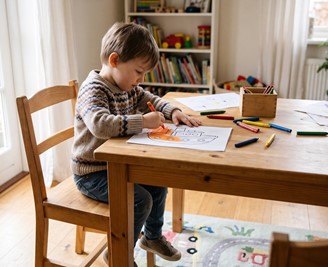 Put the intended crayon beside the trial print before judging the outline's detail. Can it comfortably fill the small areas that matter? An AI Photo Editor helps produce the drawing, and PicEditor AI can convert an uploaded photograph into a coloring-page candidate. The paper check decides whether that candidate belongs on the activity table. A familiar subject with generous spaces may be more inviting than an intricate drawing that looked impressive on screen.
Prepare a Source With Room Between Its Shapes
Choose a subject that remains recognisable without its color and surface texture. A simple toy boat, a large flower, or a favorite soft toy may work better than a crowded shelf of small objects. Give the outline conversion a subject with clear parts and enough space around them.
Look at the background as well as the subject. Patterned fabric, grass, and wallpaper can contribute many lines that compete with the main shape. If you can take another photograph, place the object against a simpler background. If you are using an existing picture, choose a crop that retains the recognizable subject while reducing irrelevant surroundings.
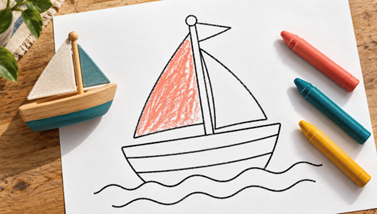
For a hypothetical toy-boat activity, the hull, sail, and mast should remain easy to distinguish. Fine woodgrain or tiny stitching may add little to the coloring experience. Identify the few shapes that make the boat recognizable before generating the page. This helps you judge whether the result preserves the useful parts while simplifying the rest.
Consider the coloring materials you plan to provide. A broad crayon and a fine pencil suit different spaces. There is no single ideal amount of detail for every participant or tool. Choose the source and print size with the intended activity in mind, then let the paper check show whether the spaces are practical.
Generate the Outline and Read Its Main Shapes
PicEditor AI converts the uploaded source into a coloring-page candidate. Inspect the large shapes first. Can you still recognize the boat without referring to the photograph? Do the sail and hull remain distinct? If the main subject has become unclear, detailed inspection of line quality will not rescue the page's purpose.
Next, look for closed areas that can be filled comfortably. A line drawing does not need every boundary to be mathematically closed, but unintended gaps can make it difficult to see where one region ends. Dense clusters of short lines may also create awkward slivers. Notice those regions before deciding how many copies to print.
For an AI photo editing activity, a simpler source is often a useful next attempt when the first candidate is too busy. Remove competing objects from the photograph or choose a cleaner view. That changes the information supplied to the conversion instead of relying on repeated generations to somehow simplify an already crowded scene.
Check the outline at roughly the intended page size on screen, but treat that as preparation for printing. A display can make a fine gray line look crisp because it is illuminated and enlarged. Printer output, paper, and the size of the drawing all affect what the participant will actually see at the table.
Print One Copy With the Intended Settings
Use the paper and printer settings planned for the activity. Check the print preview for scaling and clipped edges, then make a single copy. If the image is automatically reduced to fit large margins, its small spaces may become much tighter than expected. Review the physical page before assuming that the screen dimensions describe the finished activity.
Using an AI Photo Editor does not remove this ordinary print check. Place the intended crayon or pencil beside the smallest meaningful area. Try coloring that area with a few normal strokes. If the tool is wider than the space, decide whether that detail is necessary or whether a simpler drawing would make the activity more enjoyable.
Test more than one part of the page. A large sail may be easy to fill while the mast or decorative trim becomes a dense patch. Look for usable areas that allow relaxed strokes with the chosen tool.
PicEditor AI can provide the outline, while the printed copy reveals practical issues such as pale lines and crowded regions. If the linework is too faint, check the print settings and source candidate before making a batch. If the drawing is too detailed, revisit the source. Keep the marked trial copy so that you can see which change helped. If the next version prints better, compare the previously difficult regions before approving the whole page. A clearer large outline does not necessarily fix every small gap.
1. Confirm that the main subject fits within the printed page.
2. Check that the outlines remain visible in normal room light.
3. Fill one large area and one small area with the intended tool.
4. Decide whether the detail supports the planned activity.
Use the Trial Page to Simplify the Next Version
If practical, let the intended participant try the sample too. Notice which areas they choose and which they avoid, without turning the activity into a precision test.
Mark the difficult regions on the trial copy. A note beside a cluster of tiny lines is easier to act on than a general impression that the page is too complicated. Compare those regions with the source photograph. You may find that a patterned surface, shadow, or background object created most of the unnecessary detail.
AI photo editing is useful here when it helps turn a personally meaningful subject into a manageable activity. If a favorite toy has a complicated costume, keep the recognizable silhouette and consider a clearer photograph of the toy alone. The emotional connection can come from the subject; it does not require every texture in the original image to become a coloring boundary.
Keep the successful trial page near the final file so that the next person printing it can see the intended result. Note the paper size and any scaling choice used. That small handoff detail can prevent a later batch from shrinking the drawing and recreating the same cramped spaces you already resolved.
Choose the Page That Works at the Table
A useful coloring page offers recognisable shapes and enough room to enjoy filling them. PicEditor AI can help create an outline from a suitable photograph, but the one-copy trial checks the result under the conditions that matter. Let the crayon, paper, and intended activity guide the amount of detail you keep.
Once the trial feels usable, print the remaining copies. If it feels crowded, simplify the source before generating again. A less intricate drawing can be the better activity when it gives the participant clear choices and room to make the picture their own.